Step 1.
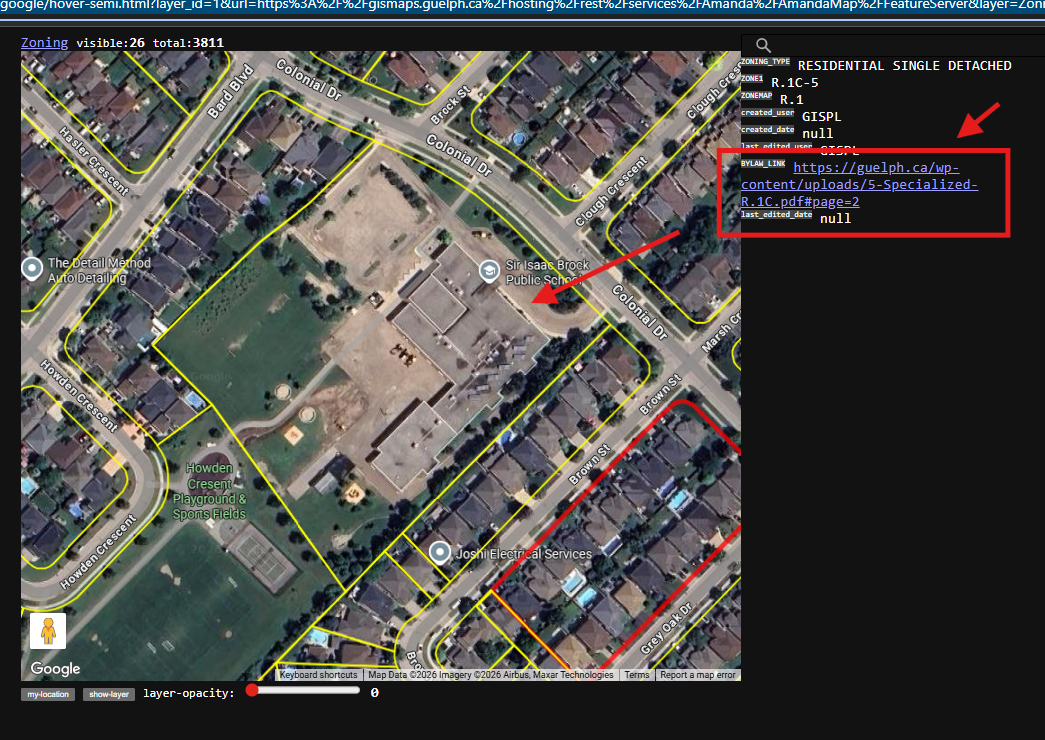
model 6393
This sample, author is smart to put zoning text pdf file as link
This is not very often to see, but very convenient for public user.
User can click the link to open PDF file to explain the details of how this zone defined.
Otherwise, user only know zone name, medium density residential, but don't know exactly how it is defined.
What means low-medium-high dense residential,
https://transparentgov.net/json2tree/gateway/google/hover-semi.html?layer_id=1&url=https%3A%2F%2Fgismaps.guelph.ca%2Fhosting%2Frest%2Fservices%2FAmanda%2FAmandaMap%2FFeatureServer&layer=Zoning&panto=0¢er_lat=43.51925578770614¢er_long=-80.1859676130596¢er_zoom=18
model 6393,
click link
Step 2.
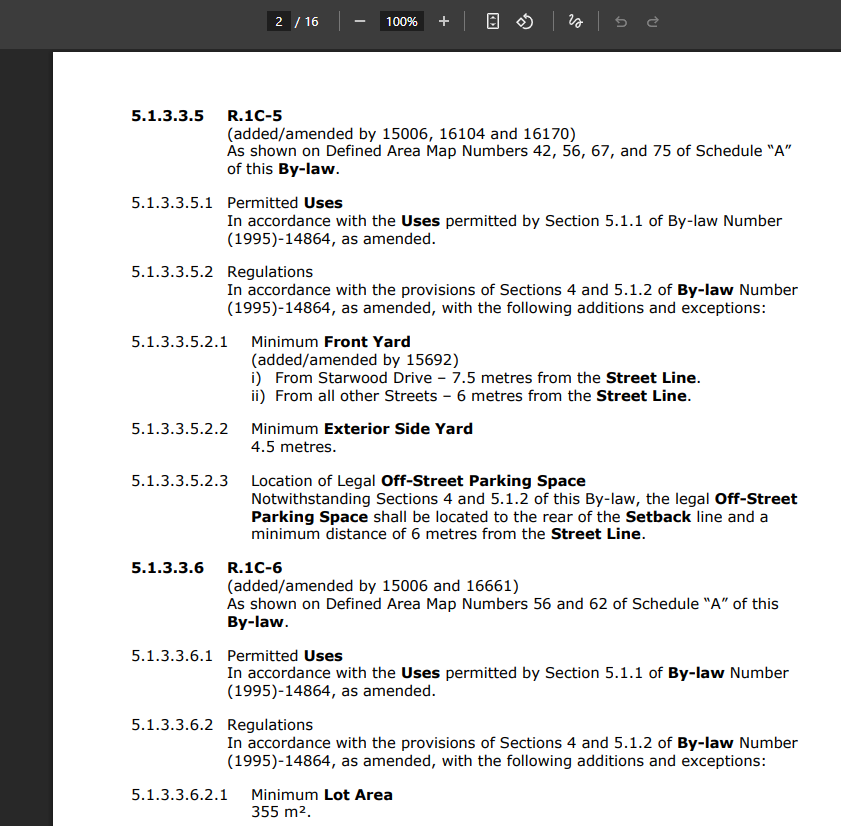
link open pdf for definition of this zone name,
This is useful for developer, builder, engineering, otherwise, they have to look up zone code seperately
not that convenient.
Step 3.
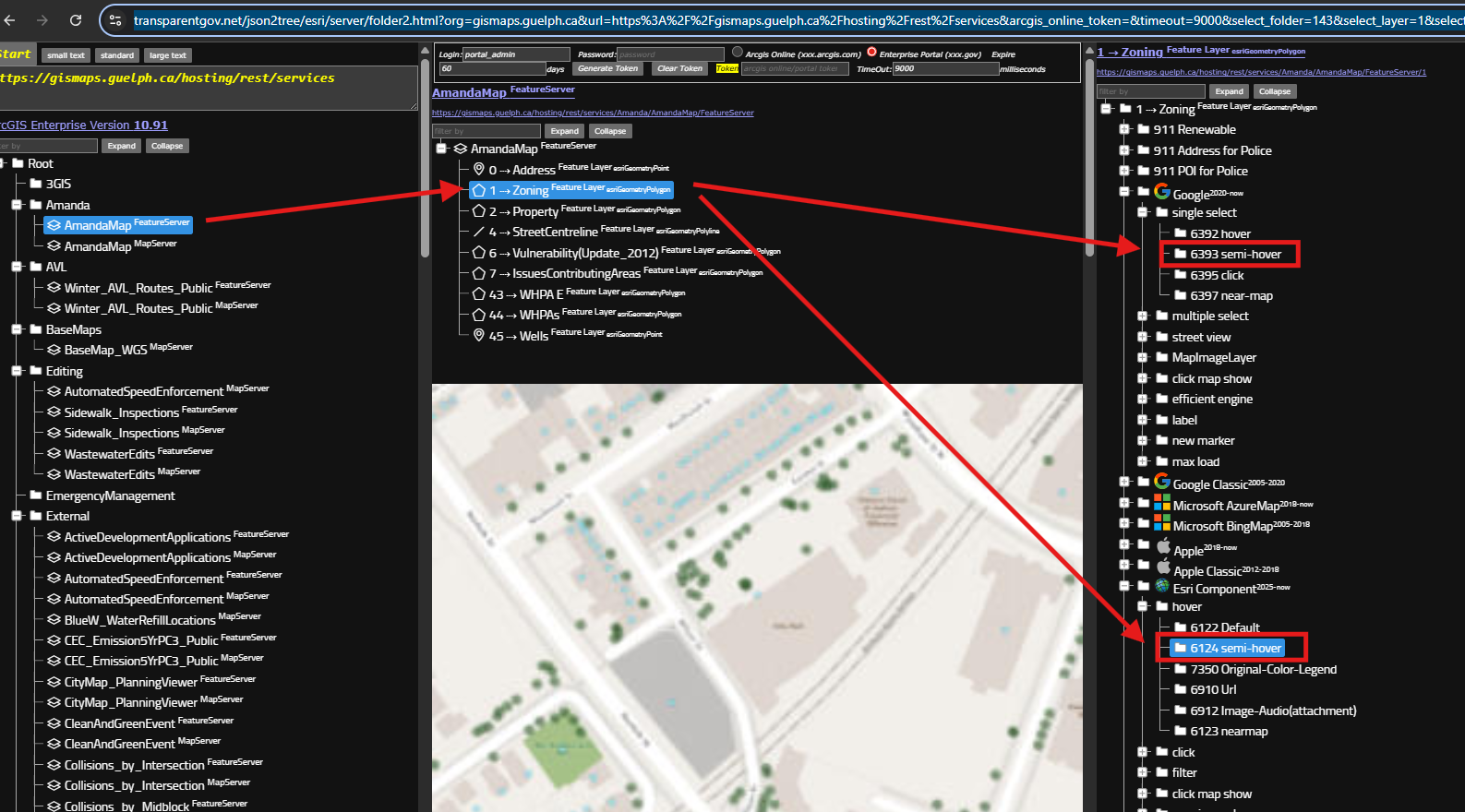
https://transparentgov.net/json2tree/esri/server/folder2.html?org=gismaps.guelph.ca&url=https%3A%2F%2Fgismaps.guelph.ca%2Fhosting%2Frest%2Fservices&arcgis_online_token=&timeout=9000&select_folder=143&select_layer=1&select_folder_text=AmandaMap+%3Csup%3EFeatureServer%3C%2Fsup%3E&select_layer_text=1+%26%23x21E2%3B+Zoning+%3Csup%3EFeature+Layer%3Csub%3E+esriGeometryPolygon%3C%2Fsub%3E%3C%2Fsup%3E
Step 4.
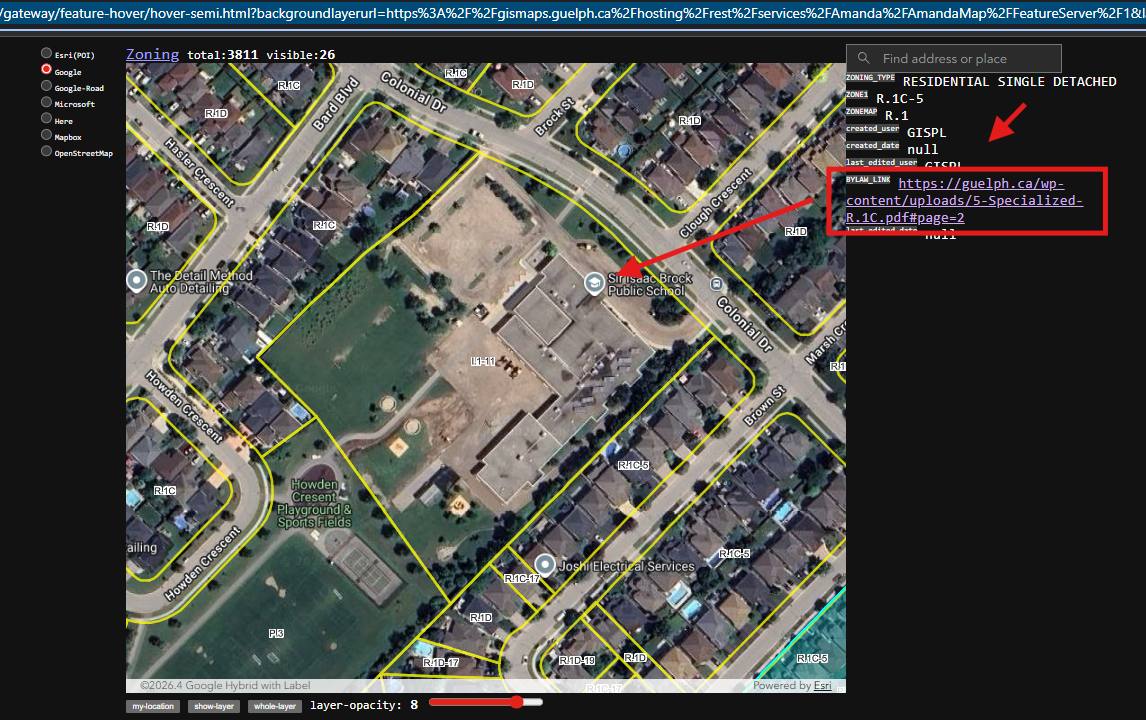
model 6124
https://transparentgov.net/json2tree/gateway/feature-hover/hover-semi.html?backgroundlayerurl=https%3A%2F%2Fgismaps.guelph.ca%2Fhosting%2Frest%2Fservices%2FAmanda%2FAmandaMap%2FFeatureServer%2F1&layer=Zoning&_center_lat=43.51925578770448&_center_long=-80.18596761304414&_center_zoom=18&panto=0
Step 5.
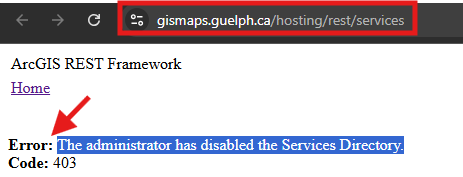
This is not very often to see, that The administrator has disabled the Services Directory.
You will see error if you click here:
https://gismaps.guelph.ca/hosting/rest/services
Step 6.
This does not do any good than bad.
They don't want you to see their content.
You can by pass their constrain to use my tool here to see their content
https://transparentgov.net/json2tree/esri/server/folder2.html?org=gismaps.guelph.ca&url=https%3A%2F%2Fgismaps.guelph.ca%2Fhosting%2Frest%2Fservices&arcgis_online_token=&timeout=9000&select_folder=143&select_layer=1&select_folder_text=AmandaMap+%3Csup%3EFeatureServer%3C%2Fsup%3E&select_layer_text=1+%26%23x21E2%3B+Zoning+%3Csup%3EFeature+Layer%3Csub%3E+esriGeometryPolygon%3C%2Fsub%3E%3C%2Fsup%3E
Step 7.
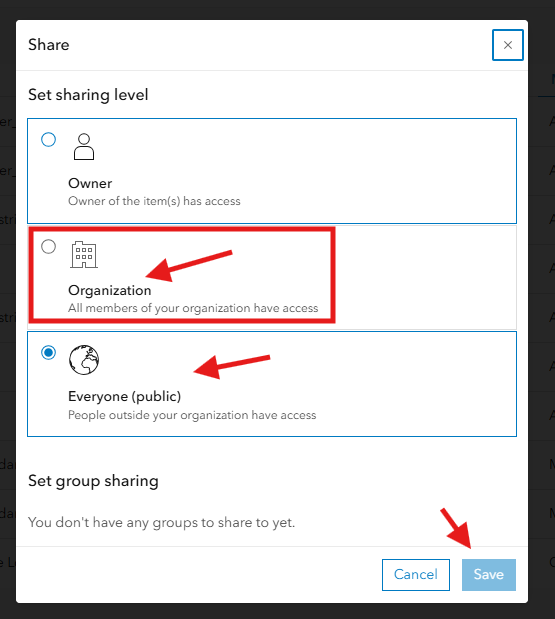
If you really don't want public user to see your content,
What you should do is share to organization instead of public see here.
Step 8.
after you save, share within organization,
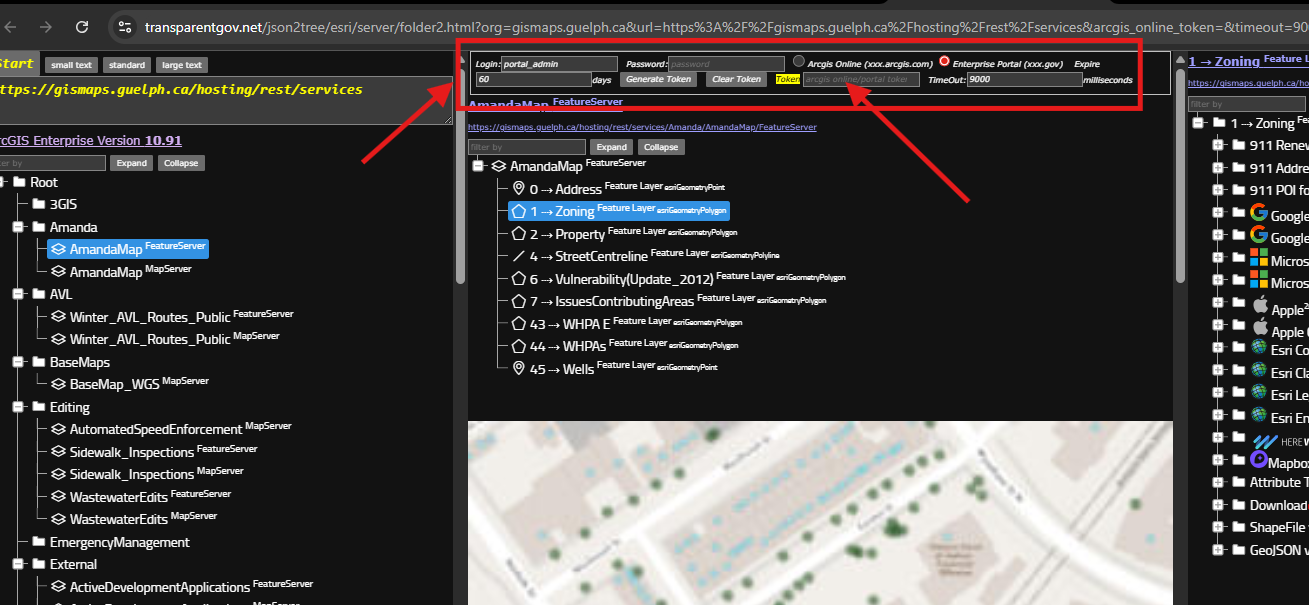
now if you want see these layers, you must login arcgis.online.com use your user name and password here,
see red arrow to login to see your layer.
Step 9.
Step 10.
Step 11.
Step 12.
Step 13.