Step 1.
Normally street block range break at 100
Typical street segment range is from xx00 to xx98
or xx01 to 0099
But maybe 10% of them range over 100.
these missing 100 break lower the overall search address accuracy by 10% off.
street designer, natually design street range that way due to natural reason.
For 911 dispatch, you could fix that by finding them,
split segment into smaller one with each segment range from xx00 to xx98, xx01 to xx99
Here is how to find them
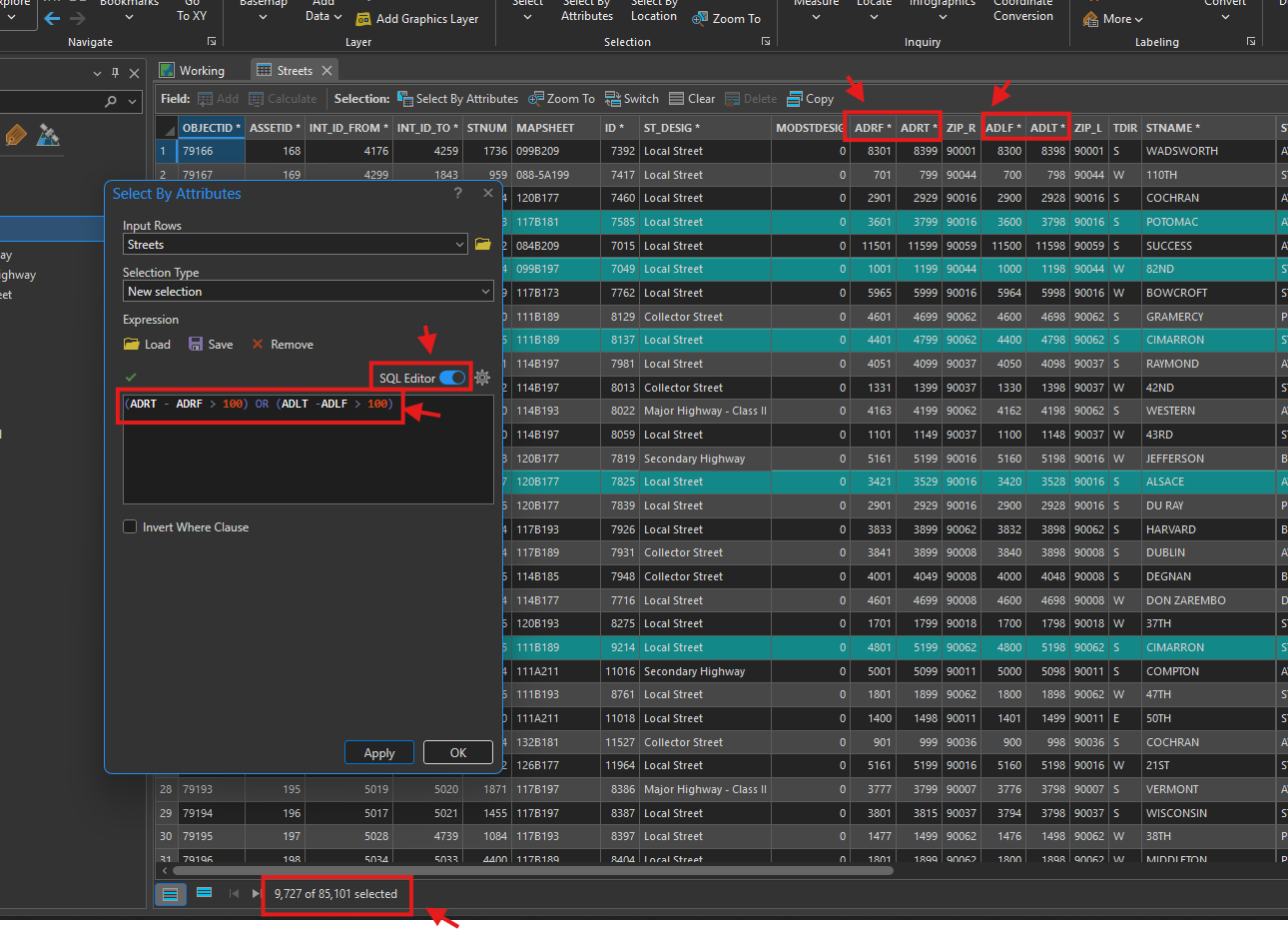
Step 2.
Here is how to export them into a single seperate shape file.
Then you can fix it.
data > export feature will grey out due to admin disable extract capability.
the work around is use feature class to shape file tool
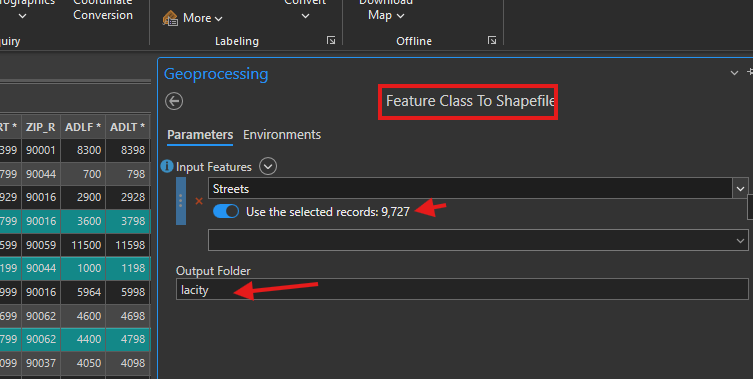
Step 3.
google map have house, number,
to fix street range, you need add google map into arcgis pro
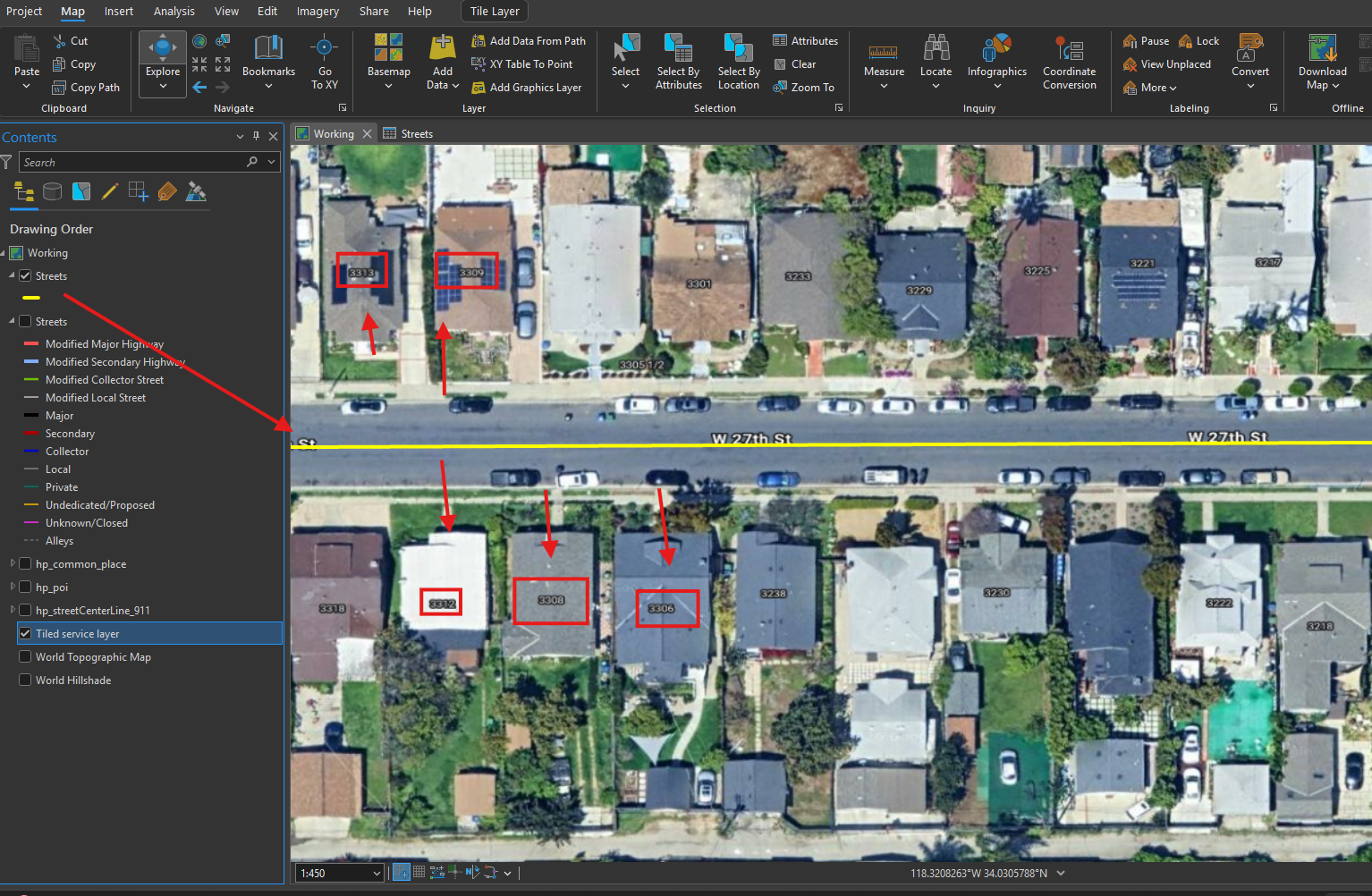
Step 4.
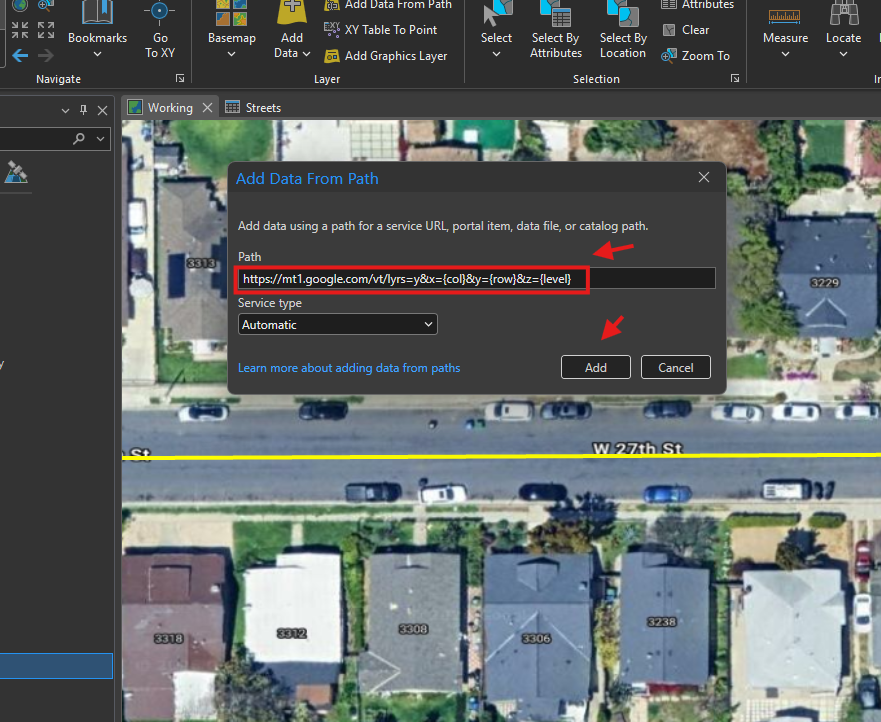
here is how you add google map to arcgis pro.
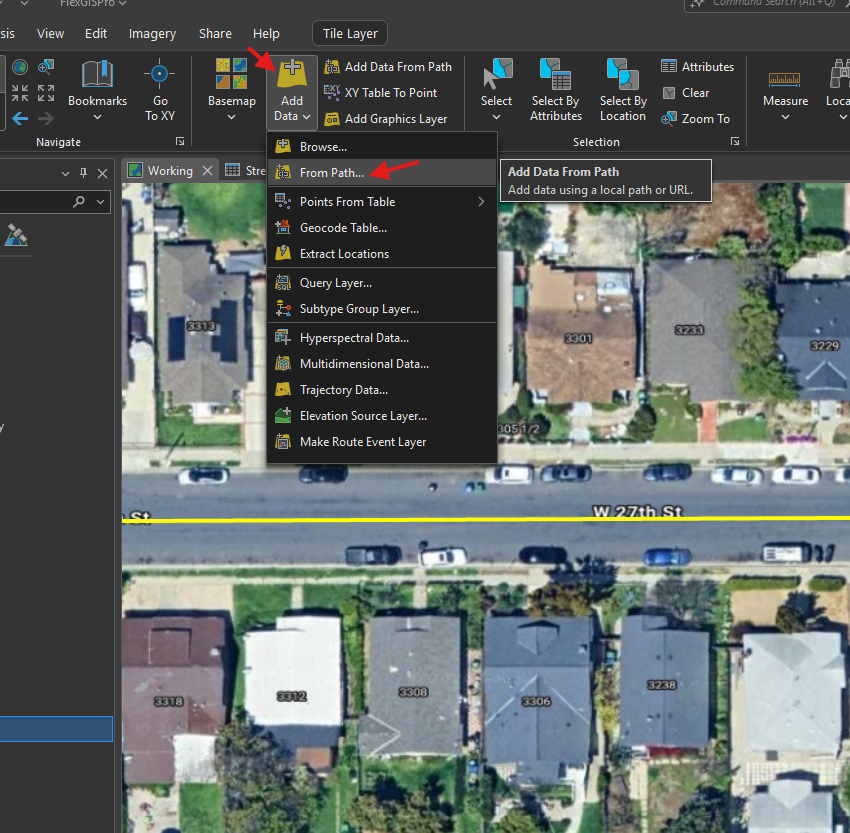
Step 5.
copy past this url here
https://mt1.google.com/vt/lyrs=y&x={col}&y={row}&z={level}
Step 6.
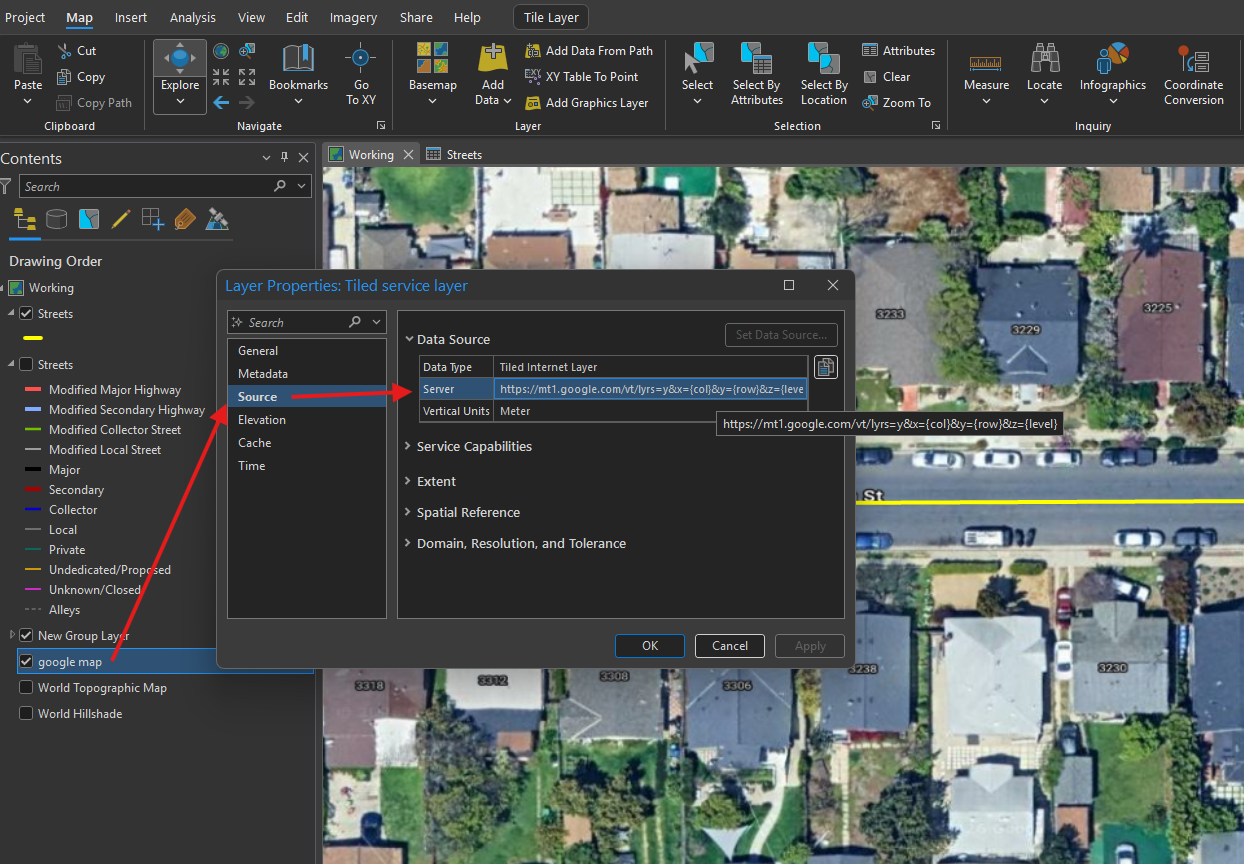
now, google map successfully add to arcgis pro.
Step 7.
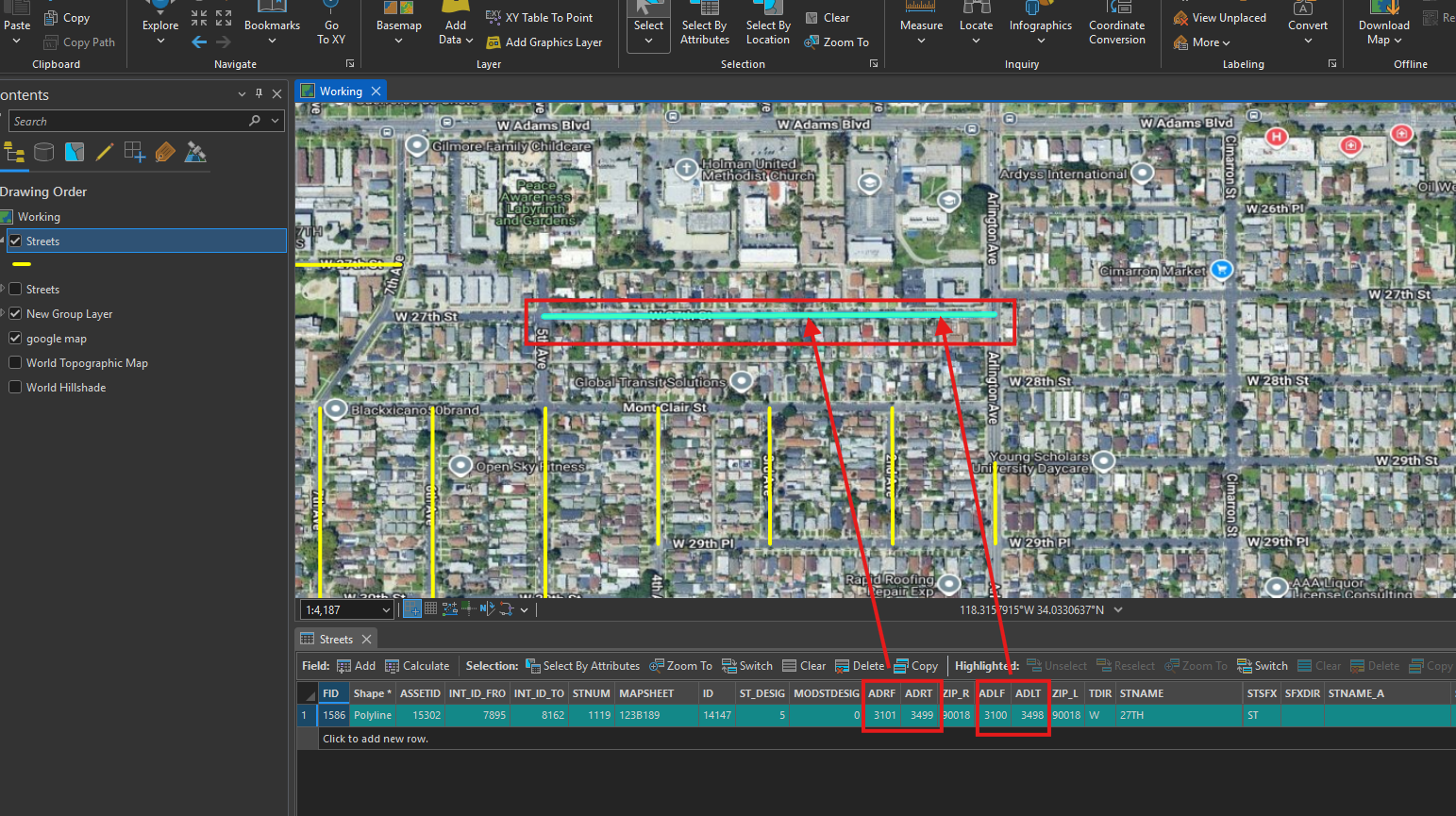
all yellow street segment block range is over 100,
for example, this one 400 range, should be split into 4 segment.
Step 8.
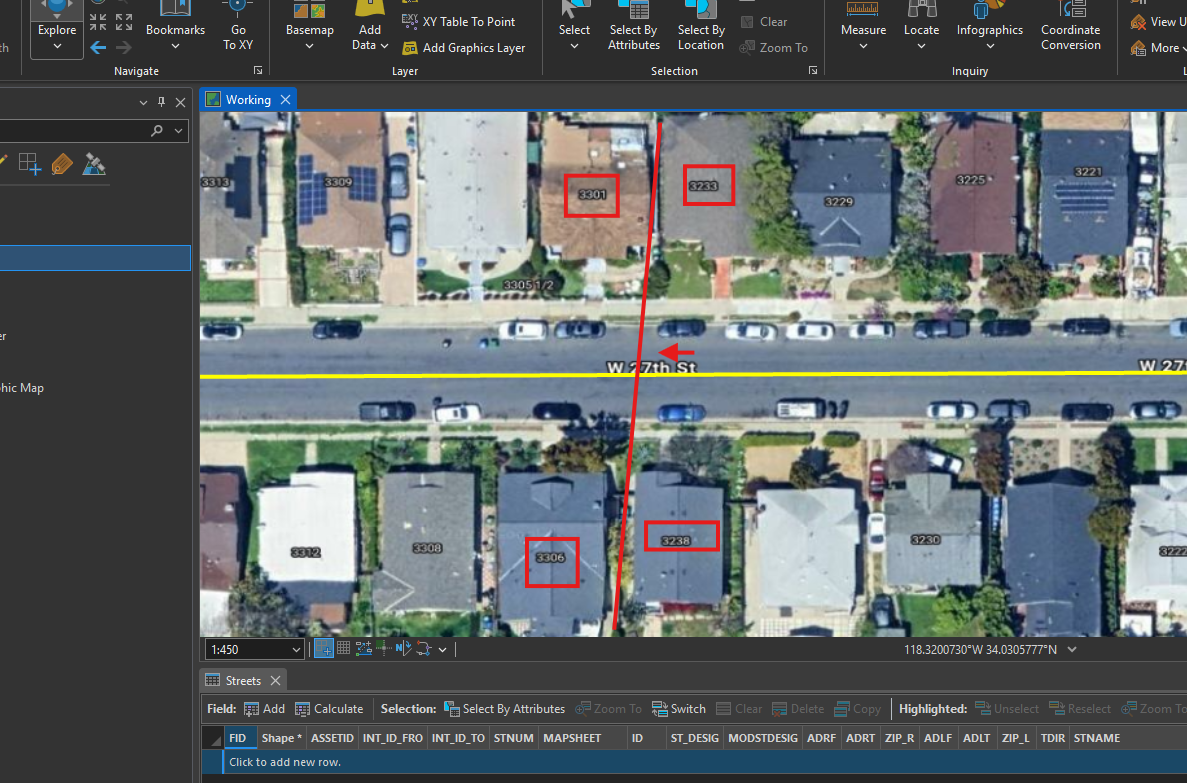
here is why you need google map on arcgis pro.
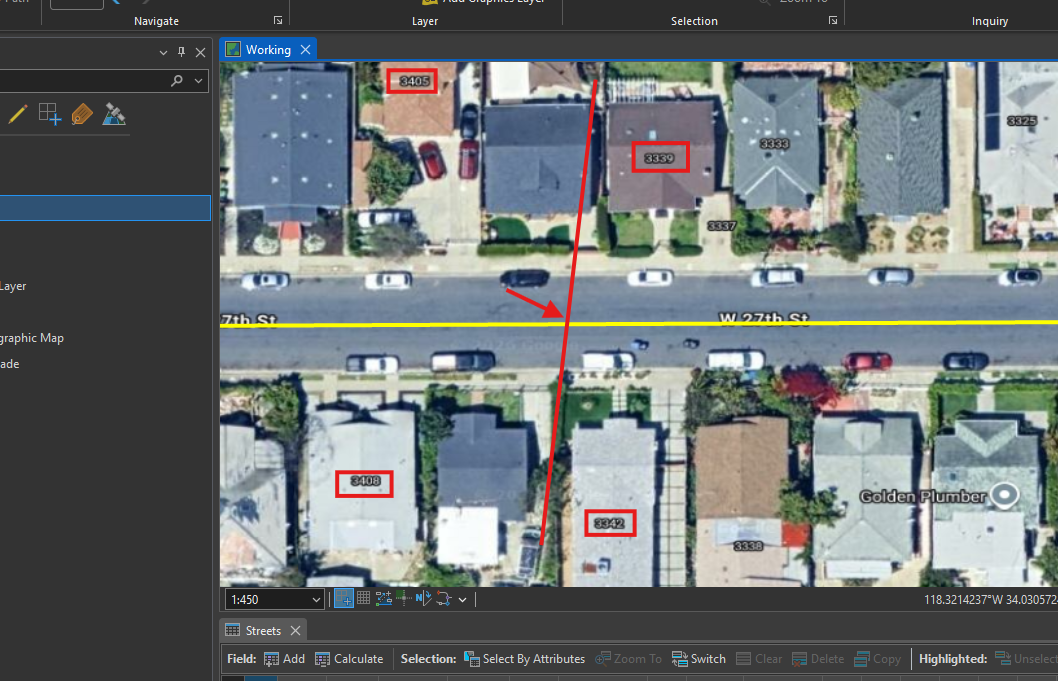
google map have house number on roof.
you can see house number from 32xx jump to 33xx at red line.
so you should split street segment at red line.
Step 9.
here house number jump from 33xx to 34xx
you should split segment in red line
Step 10.
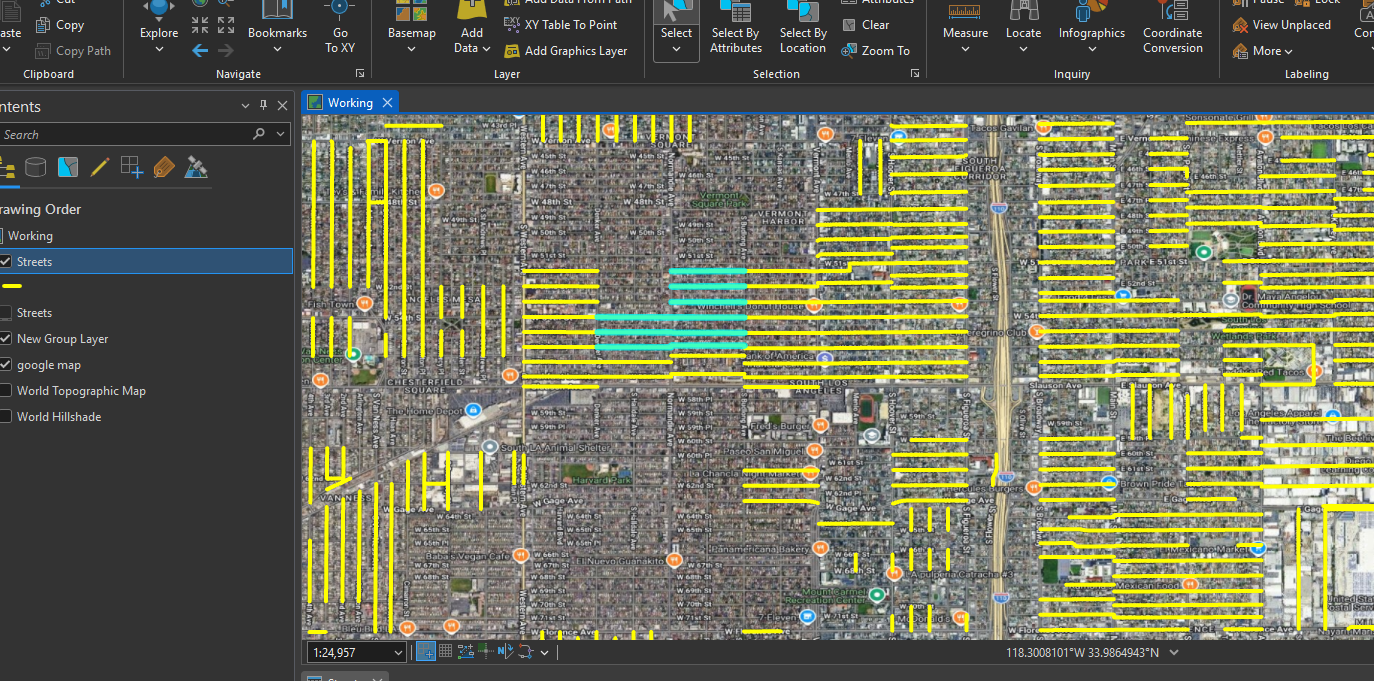
these yellow line need fix
Step 11.
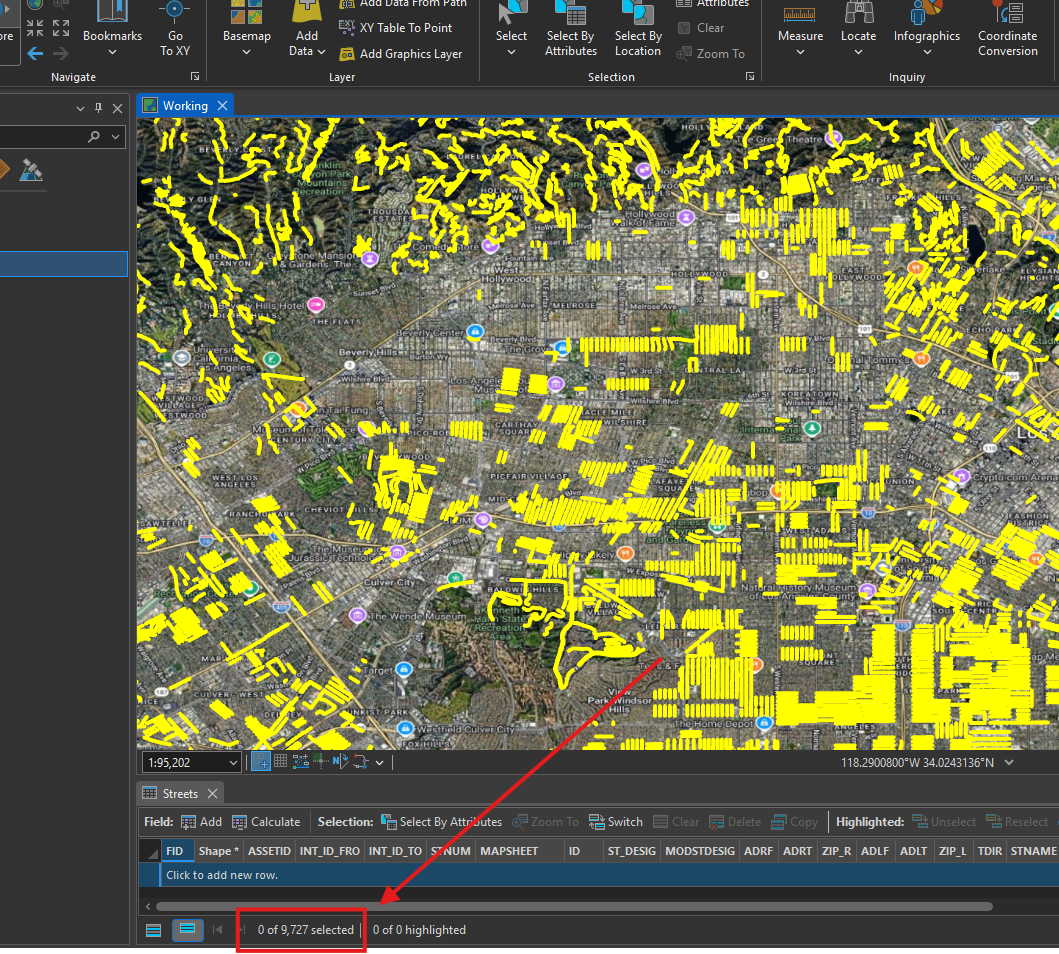
total 9k for large city
Step 12.
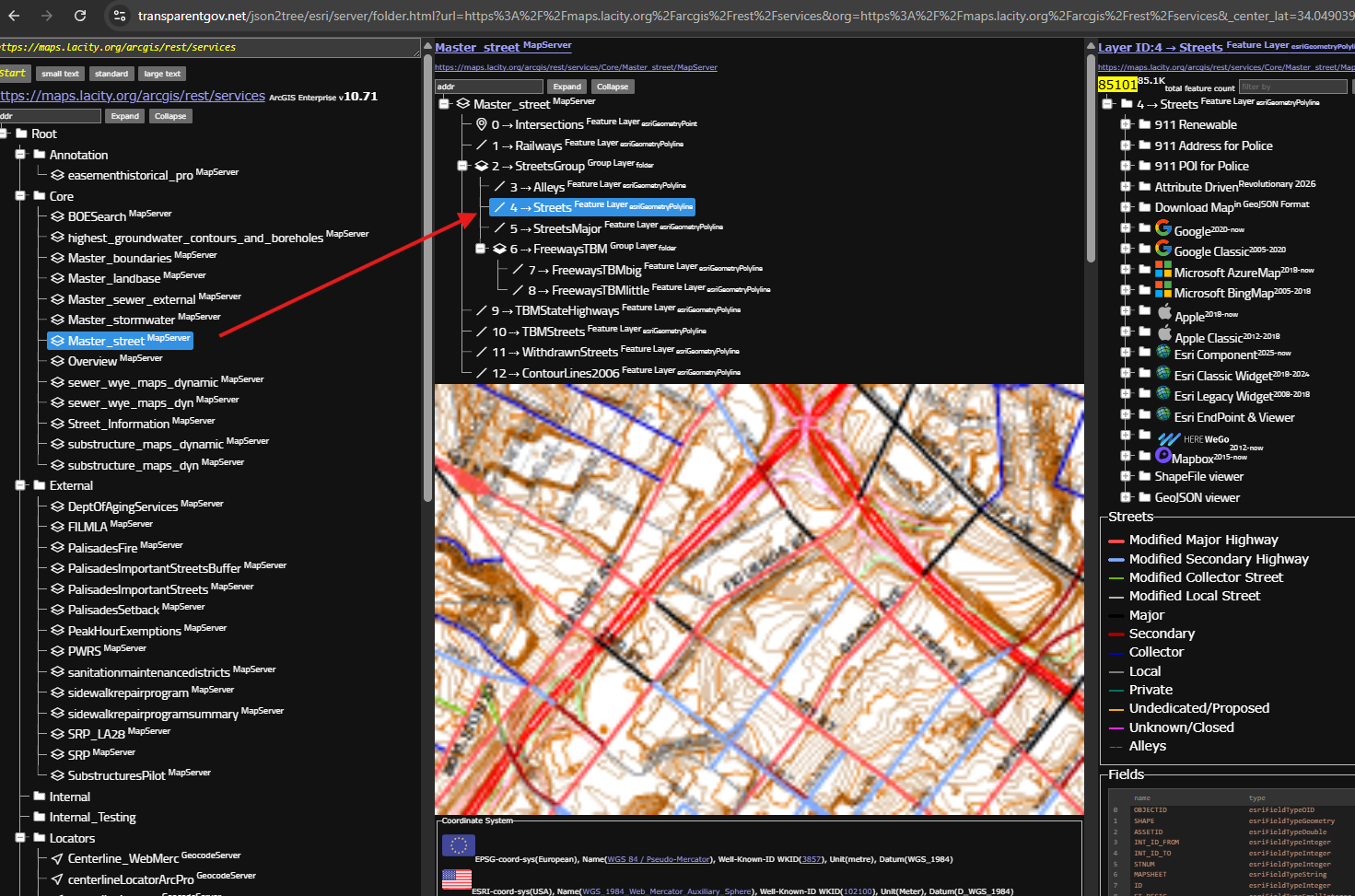
street layer is here
https://transparentgov.net/json2tree/esri/server/folder.html?url=https%3A%2F%2Fmaps.lacity.org%2Farcgis%2Frest%2Fservices&org=https%3A%2F%2Fmaps.lacity.org%2Farcgis%2Frest%2Fservices&_center_lat=34.049039&_center_long=-118.246521&_center_zoom=17&cross=default&timeout=3000&arcgis_online_token=&select_folder=54&select_layer=4&select_folder_text=Master_street+%3Csup%3EMapServer%3C%2Fsup%3E&select_layer_text=4+%26%23x21E2%3B+Streets+%3Csup%3EFeature+Layer%3Csub%3E+esriGeometryPolyline%3C%2Fsub%3E%3C%2Fsup%3E
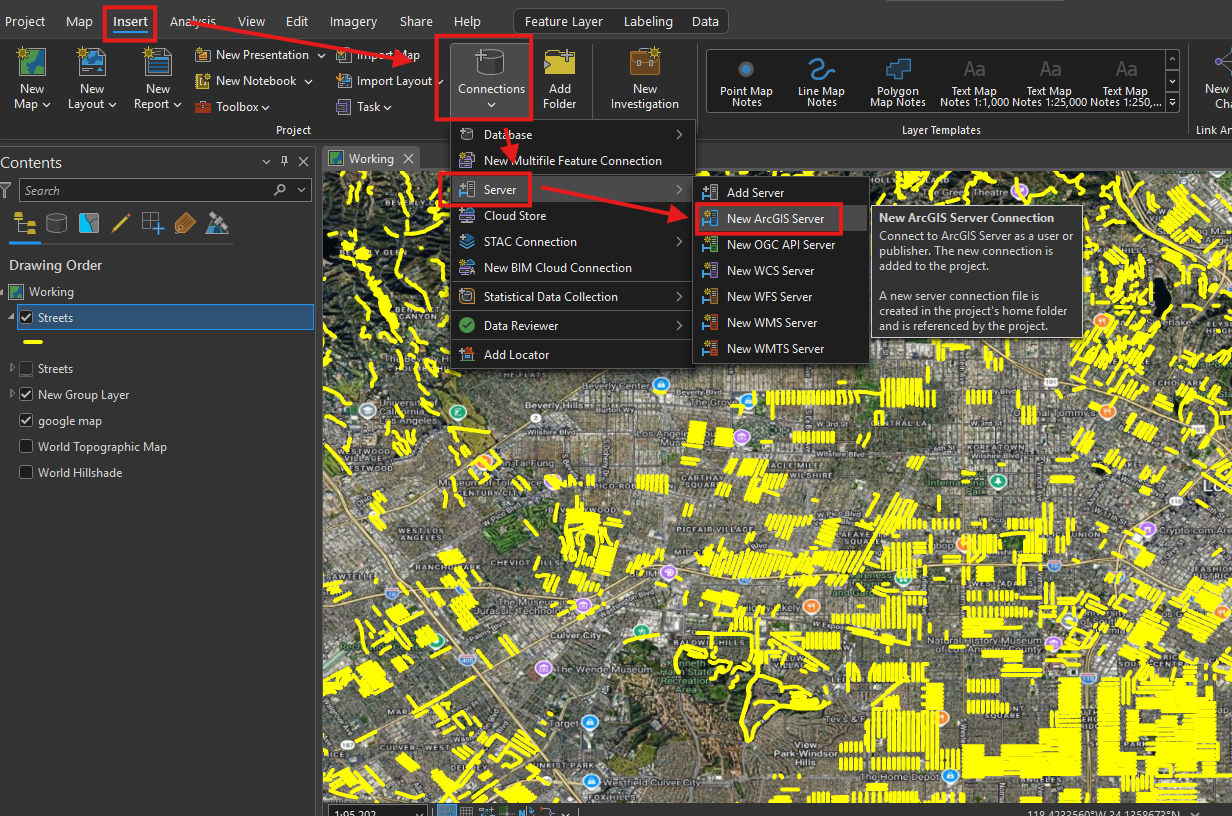
Step 13.
how to add street layer into arcgis pro,
Step 14.
copy past url here
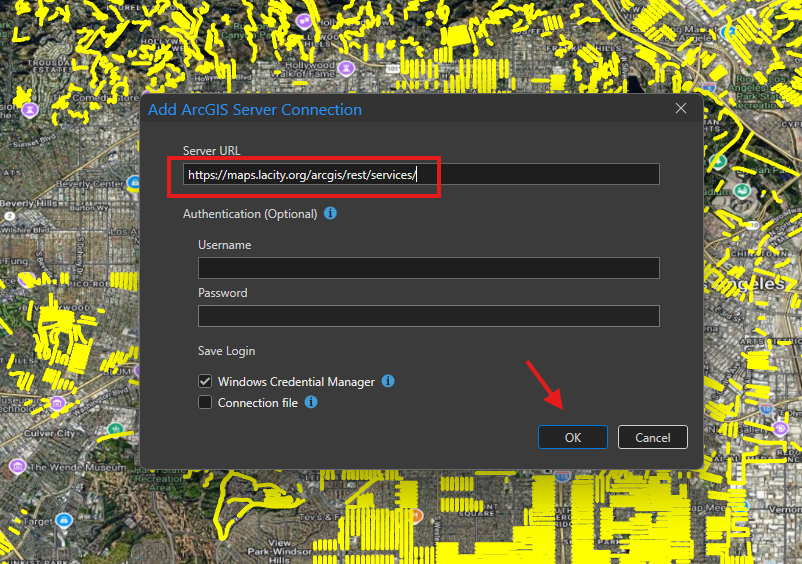
Step 15.
street layer is here now
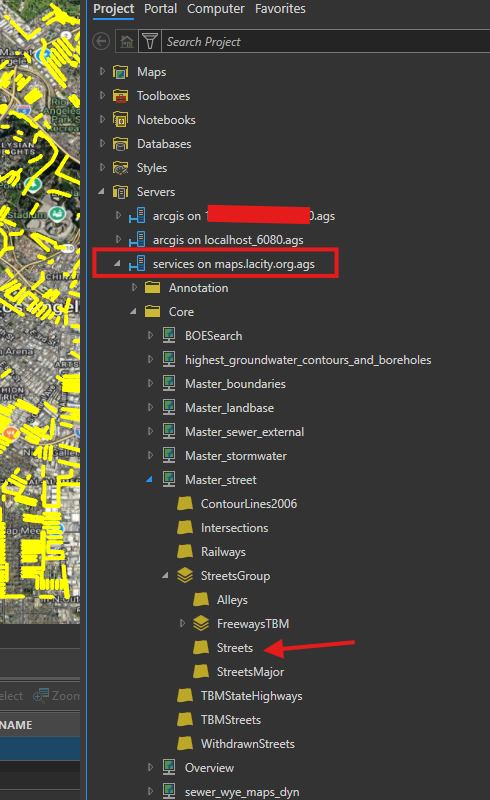
Step 16.
Step 17.
Step 18.
Step 19.
Step 20.
Step 21.
Step 22.
Step 23.
Step 24.
Step 25.
Step 26.
Step 27.
Step 28.
Step 29.