Note: This method is manually add each layer,
The problem is each time, each map, you have to repeat following steps over and over again !
If you don't want to repeat over over again,
please save google map layers on arcgis online, then you can add google map layer from arcgis online by one click read here:
https://transparentgov.net/cleargov1/2071/how-to-add-google-map-to-arcgis-pro-as-layer
Also you can share google map layer to every one, any one, so other user don't need repeat these steps over over again,
Or save google maps as web map, on arcgis online, share with other user, read here
https://transparentgov.net/cleargov1/2070/how-to-add-google-map-to-arcgis-pro-as-webmap
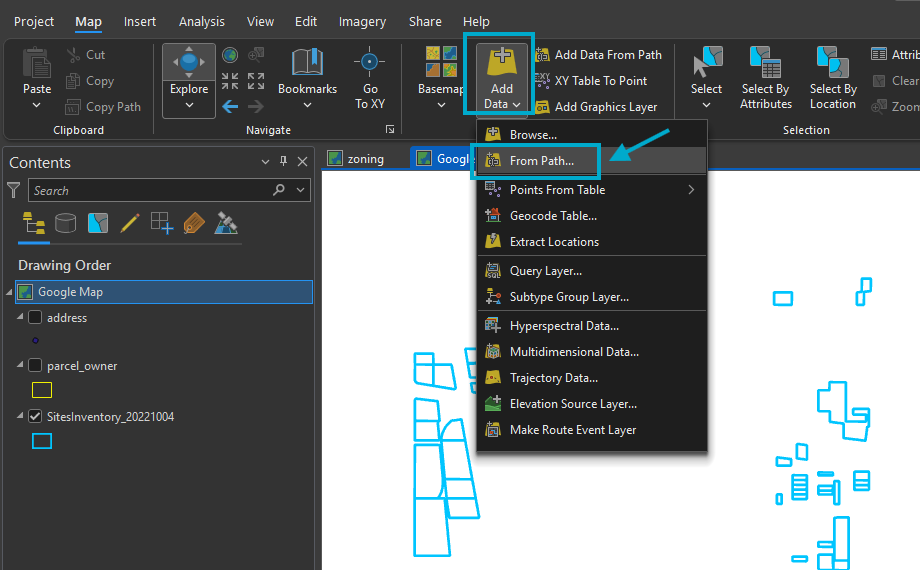
Step 1.
add google map as tile layer by click from path
Step 2.
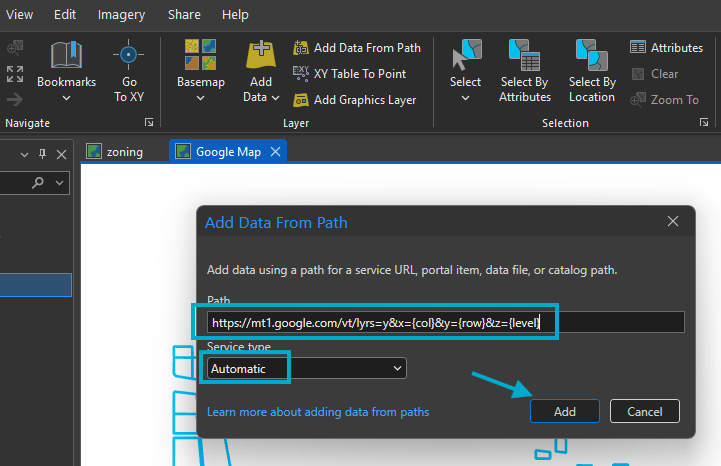
google map tile URL
https://mt1.google.com/vt/lyrs=y&x={col}&y={row}&z={level}
Step 3.
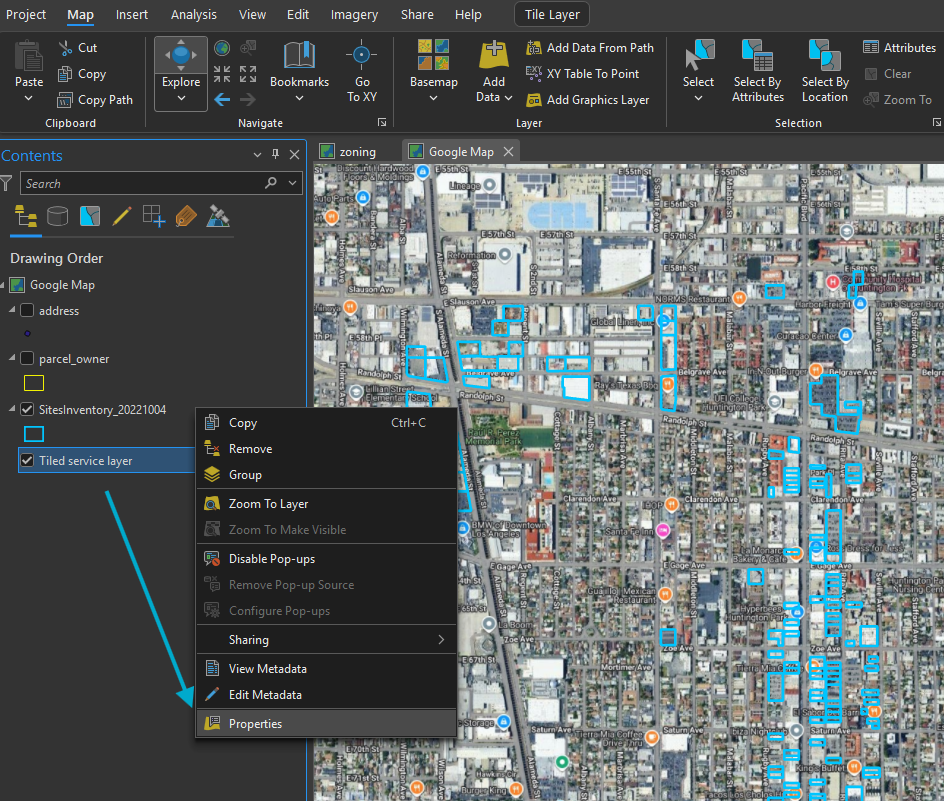
rename Tile Service Layer to "google map" by click properties
Step 4.
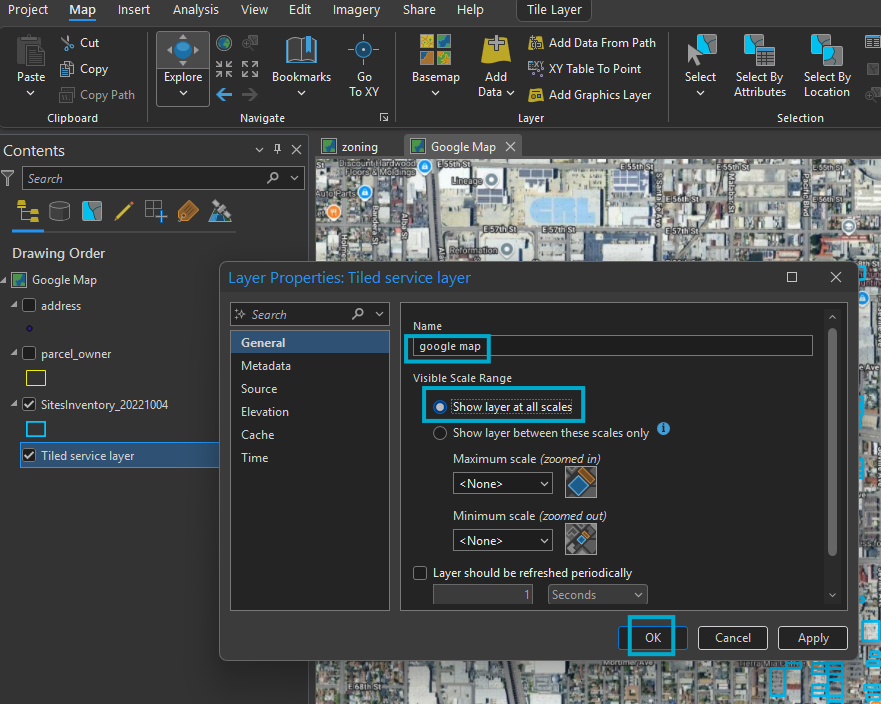
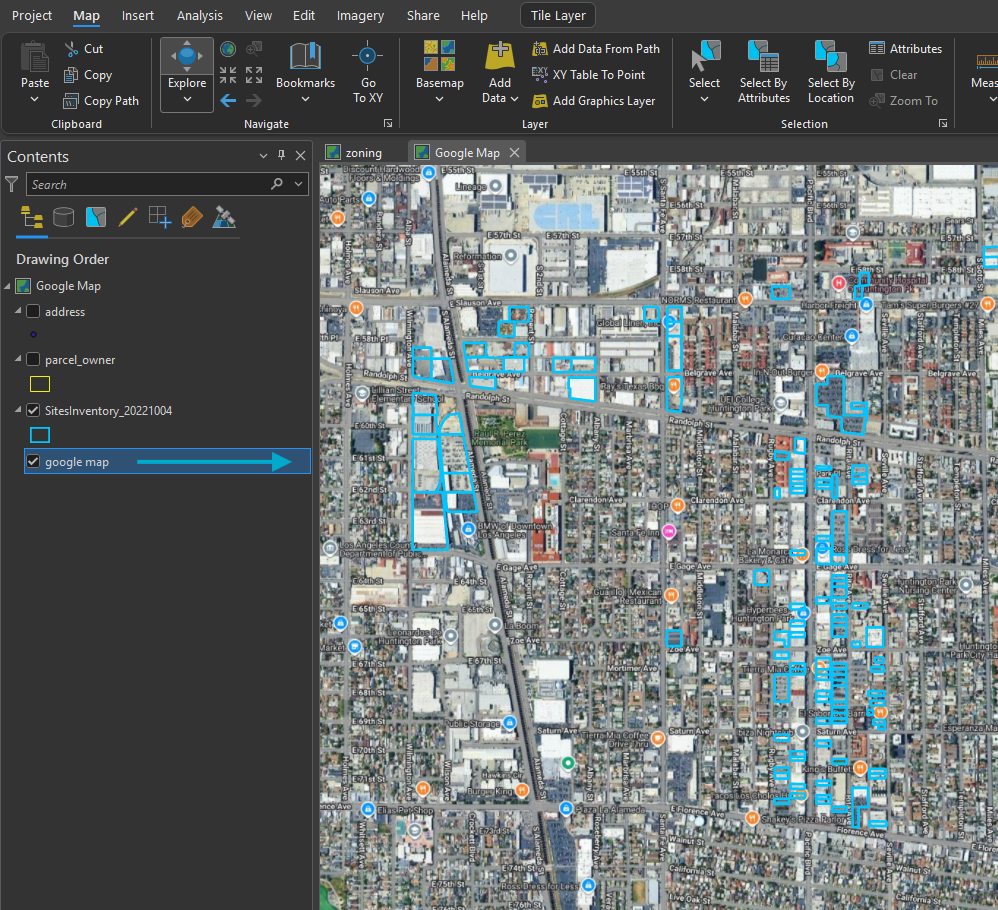
rename Tile Service Layer to "google map"
Step 5.
Done.
Step 6.
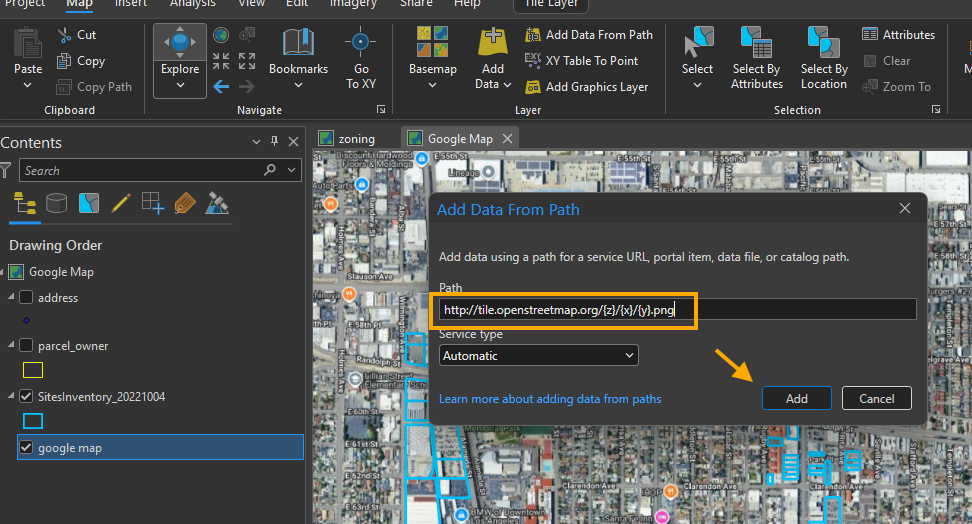
Open street map tile URL
http://tile.openstreetmap.org/{z}/{x}/{y}.png
Step 7.
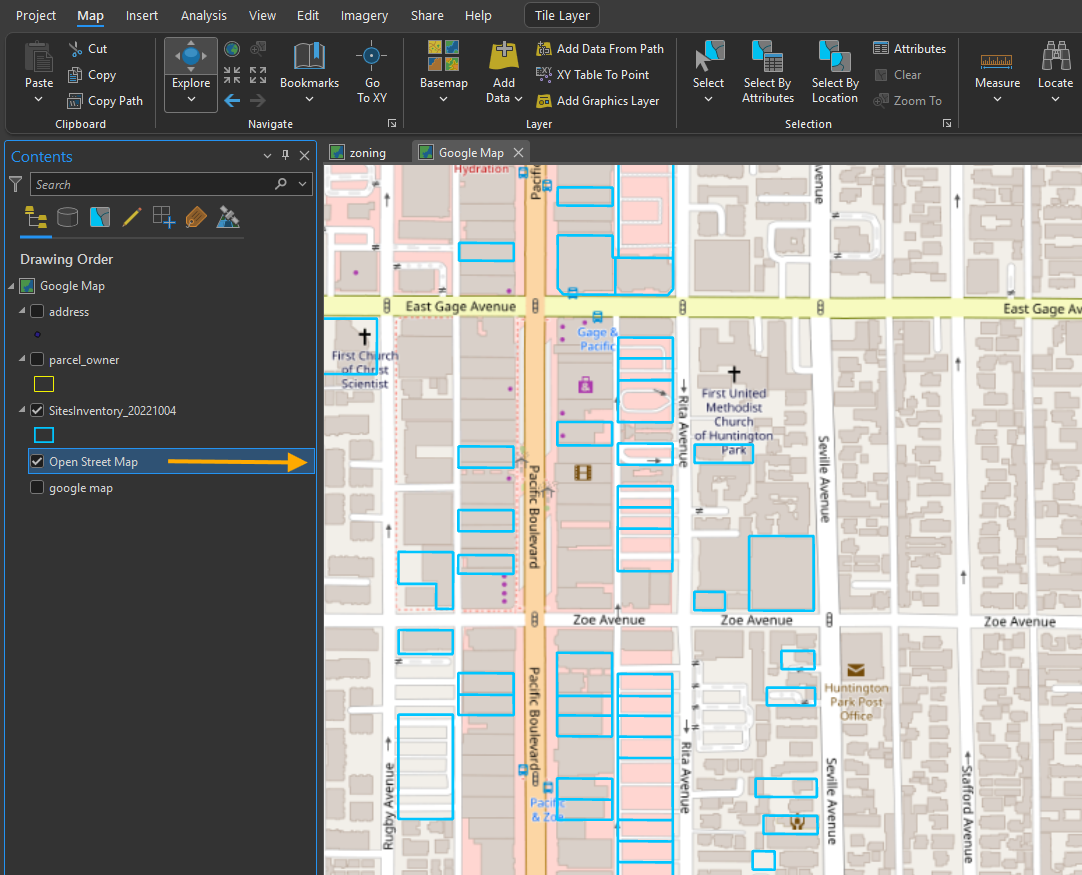
open street map added
Step 8.
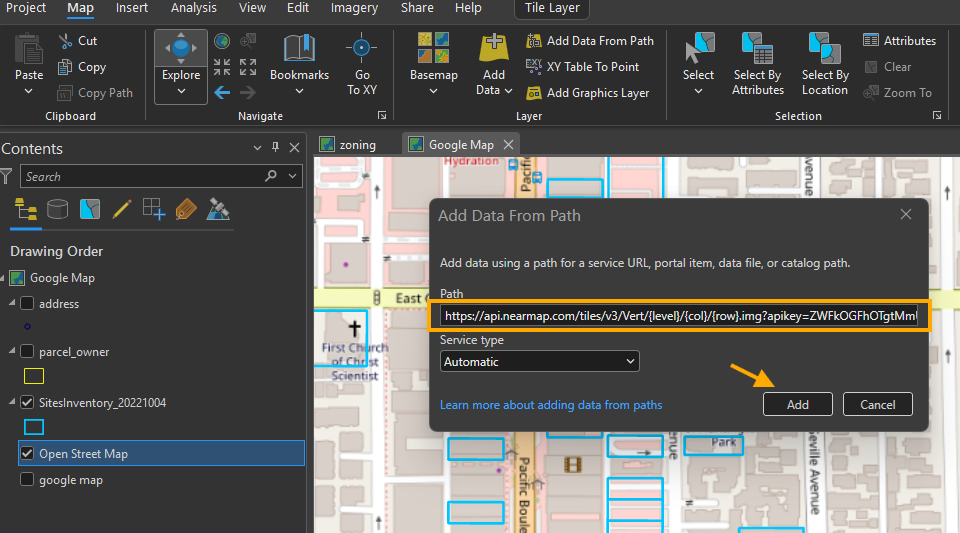
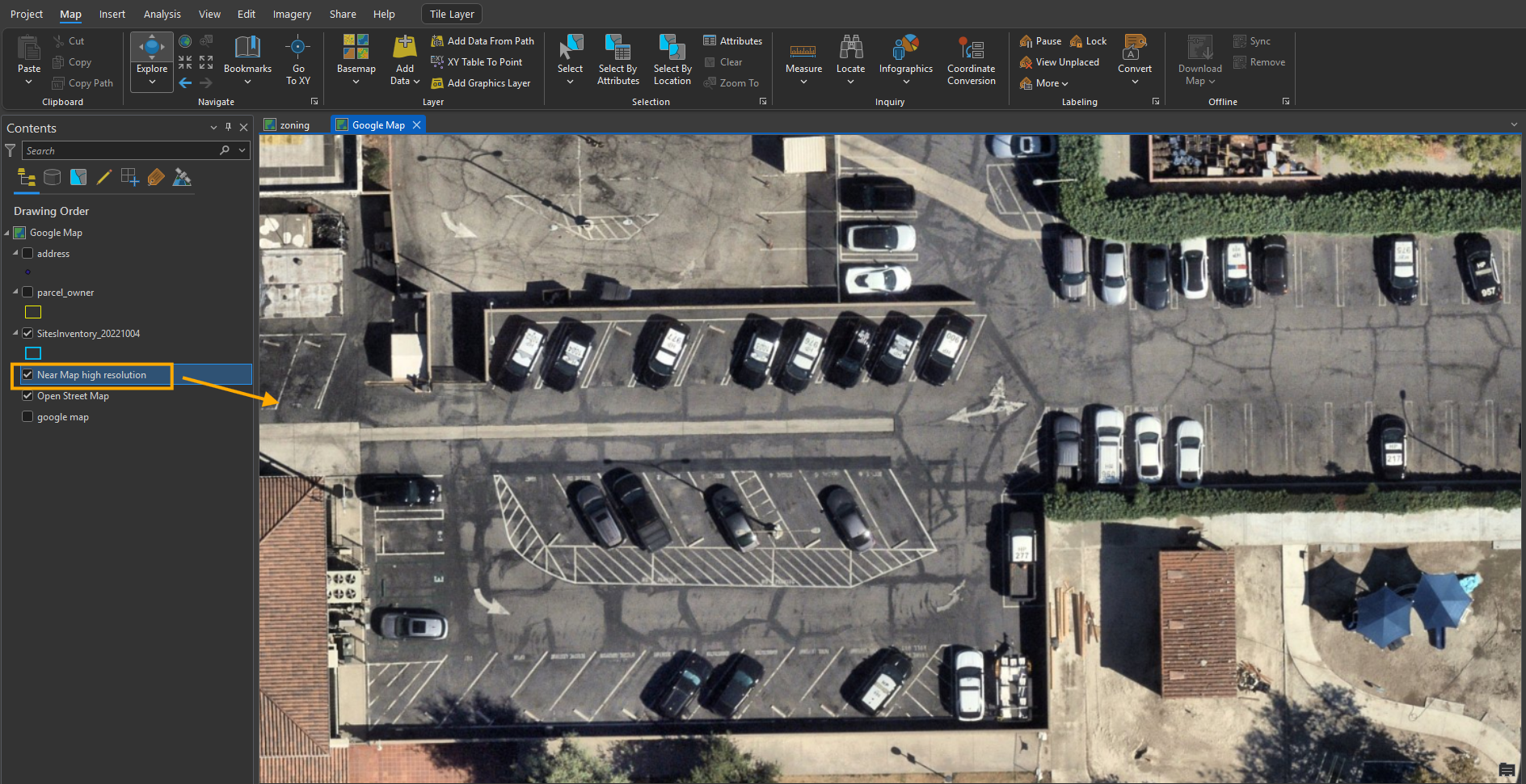
nearmap tile URL, use your own near map api key, here is fake one
https://api.nearmap.com/tiles/v3/Vert/{level}/{col}/{row}.img?apikey=ZWFkOGFh
Step 9.
near map is here
Step 10.
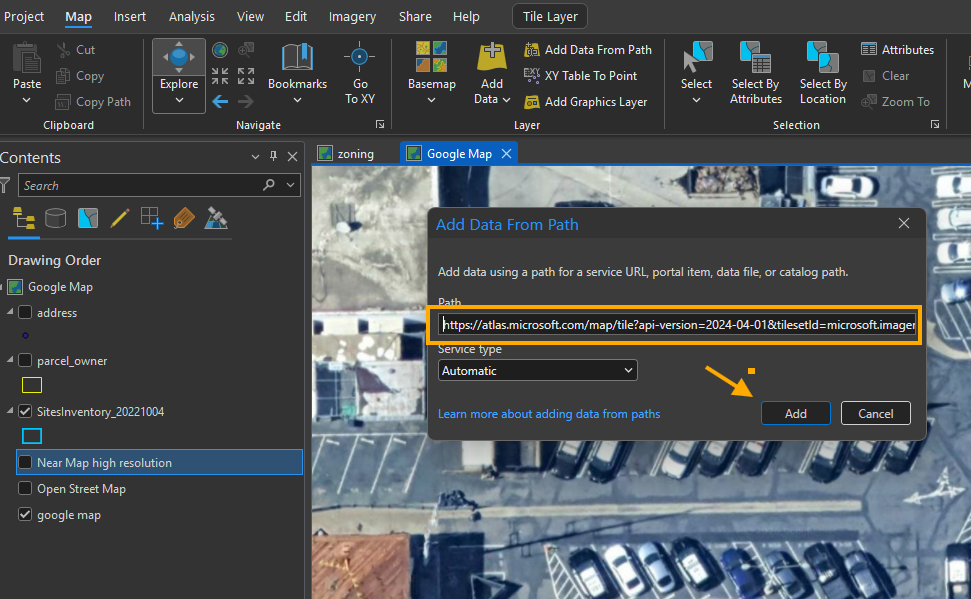
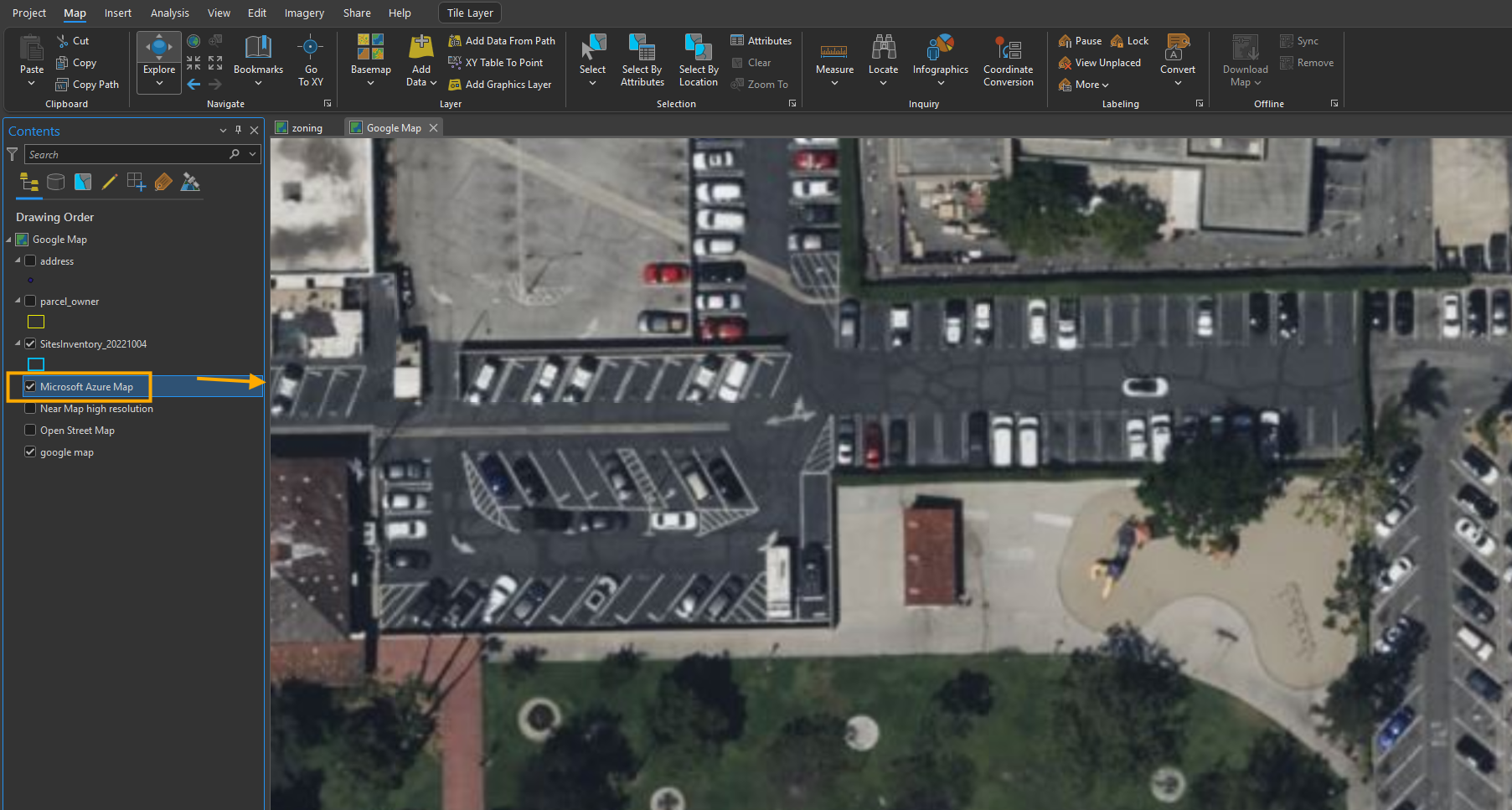
Microsoft azure map tile url, use your microsoft api key, here is fake
https://atlas.microsoft.com/map/tile?api-version=2024-04-01&tilesetId=microsoft.imagery&x={x}&y={y}&zoom={z}&tileSize=256&subscription-key=2EcKEaa1i02tTRNAUT7Ezip3htMk
Step 11.
Microsoft azure map
Step 12.
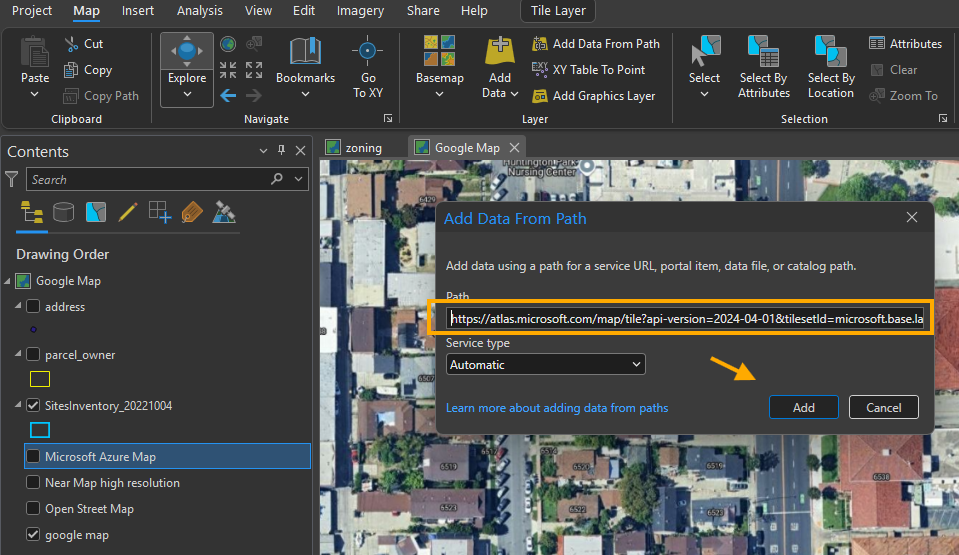
microsoft road label tile URL
https://atlas.microsoft.com/map/tile?api-version=2024-04-01&tilesetId=microsoft.base.labels.road&x={x}&y={y}&zoom={z}&tileSize=256&subscription-key=xxxxxx
Step 13.
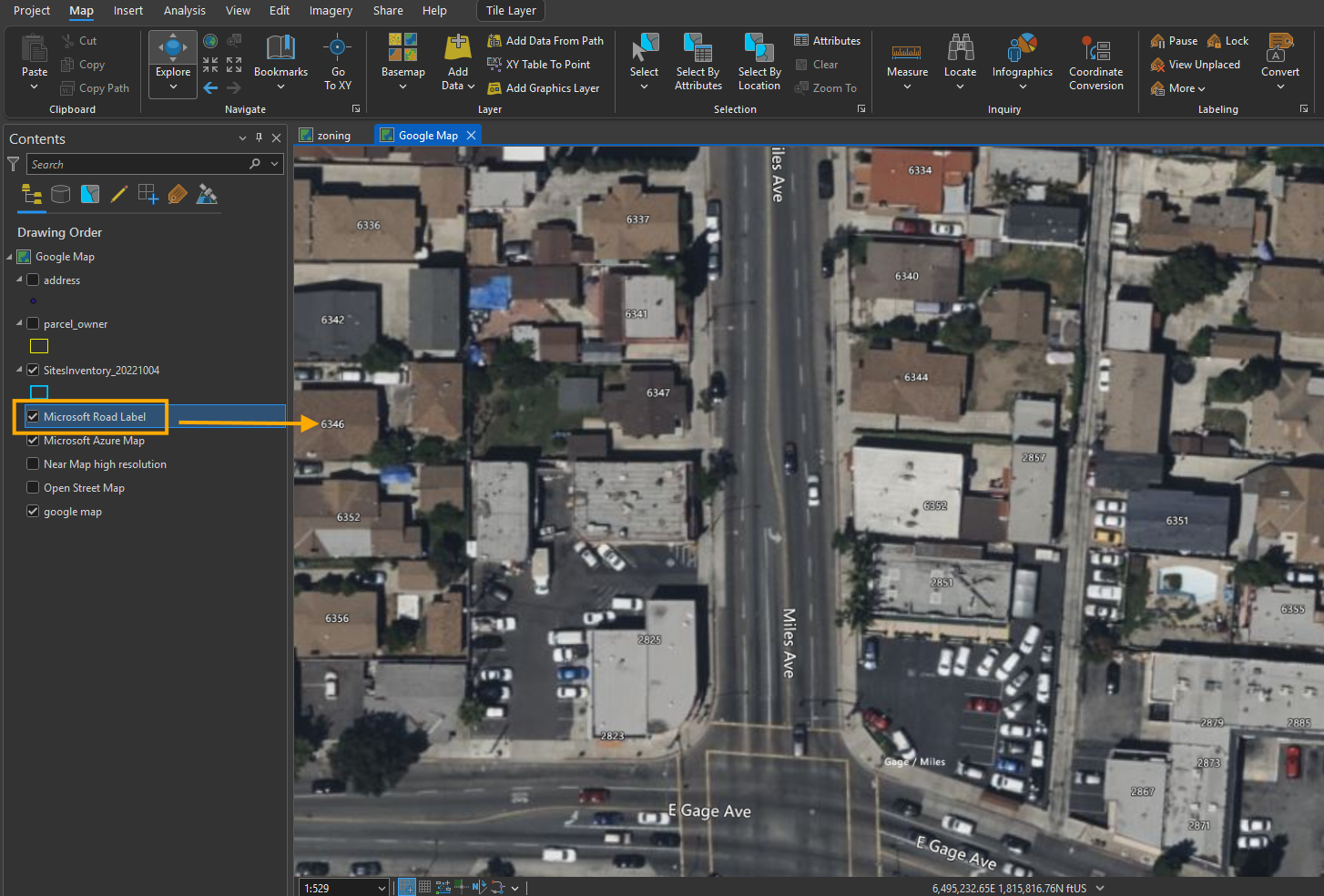
microsoft road label, show house number, road name, etc...
Step 14.
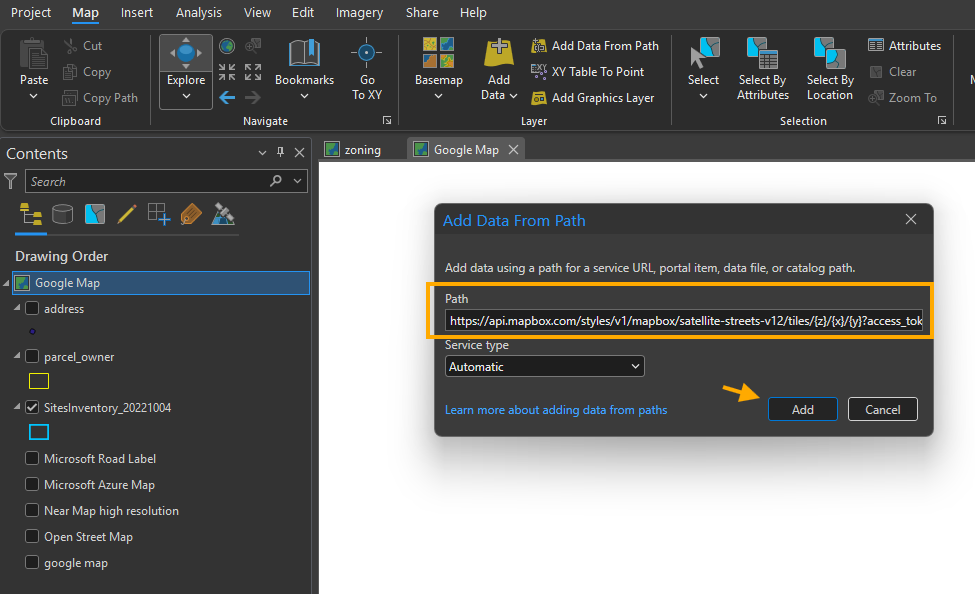
Mapbox tile URL
https://api.mapbox.com/styles/v1/mapbox/satellite-streets-v12/tiles/{z}/{x}/{y}?access_token=
Step 15.
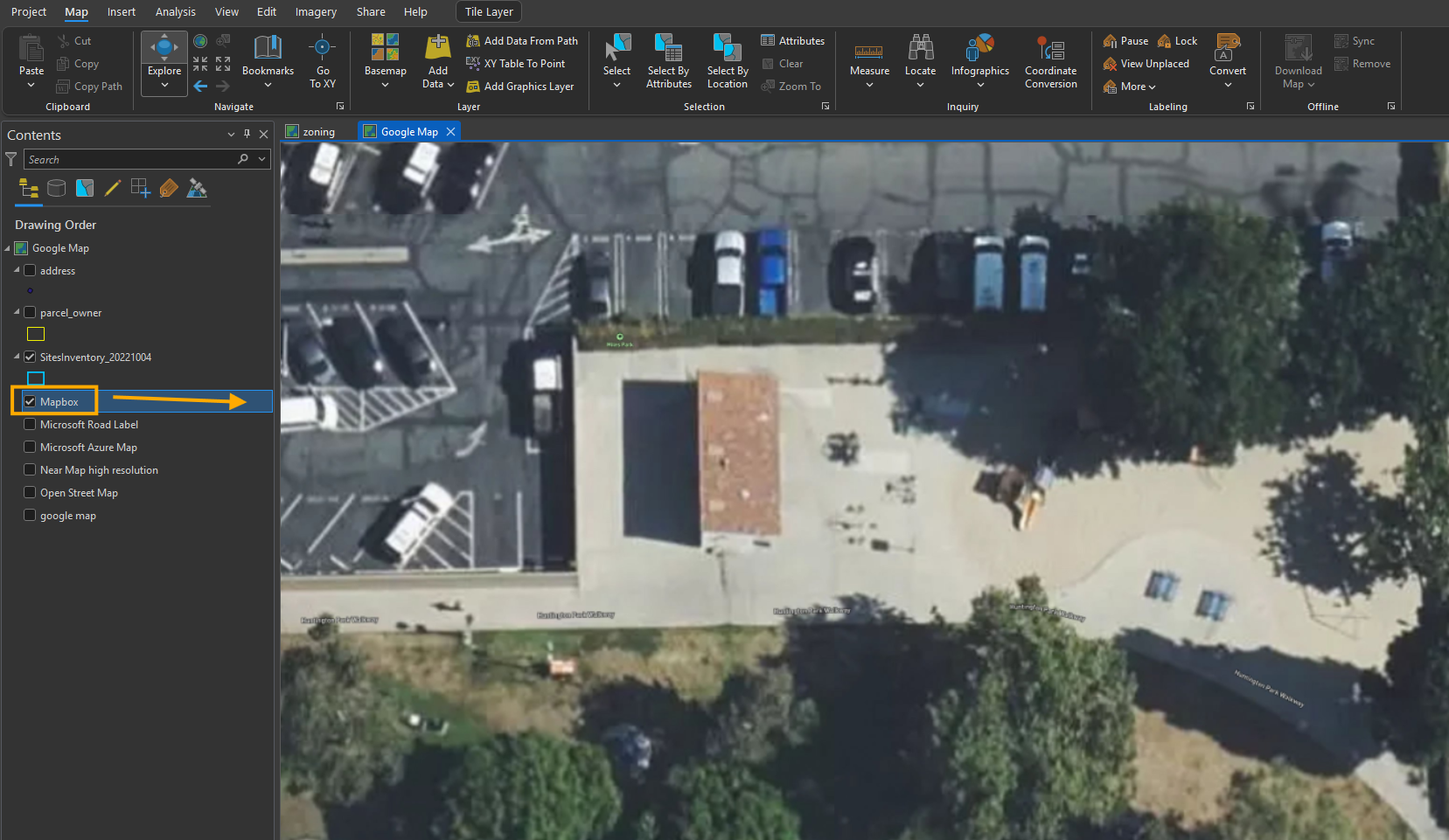
mapbox is here
Step 16.
Step 17.
Step 18.
Step 19.
Step 20.
Step 21.
Step 22.
Step 23.
Step 24.
Step 25.
Step 26.
Step 27.
Step 28.
Step 29.